Saved details
Saved details are information you keep about a person, organisation, team member, or case. You can copy these details into compatible form questions.
For example, a person’s date of birth belongs on their contact record. An answer about one particular application can stay on that case form.
Record details and form answers
| Information | Where it belongs |
|---|---|
| Details about a person | That person’s contact record. |
| Details about an organisation | That organisation’s record. |
| Information specific to the case | The case’s fields. |
| An answer specific to an official form | The case form. |
| A submitted client response | The questionnaire submission, available for review. |
A field definition controls what can be recorded. A field value is the actual information saved against one record. Changing a layout changes where a field appears, not whose information it holds.
Use saved details in a form
- Open the relevant record and check its details.
- Open the case form and go to Linked records.
- Link each role to the correct record.
- Open Copy values and choose Linked records and case fields.
- Preview the transfer and apply the values you want to use.
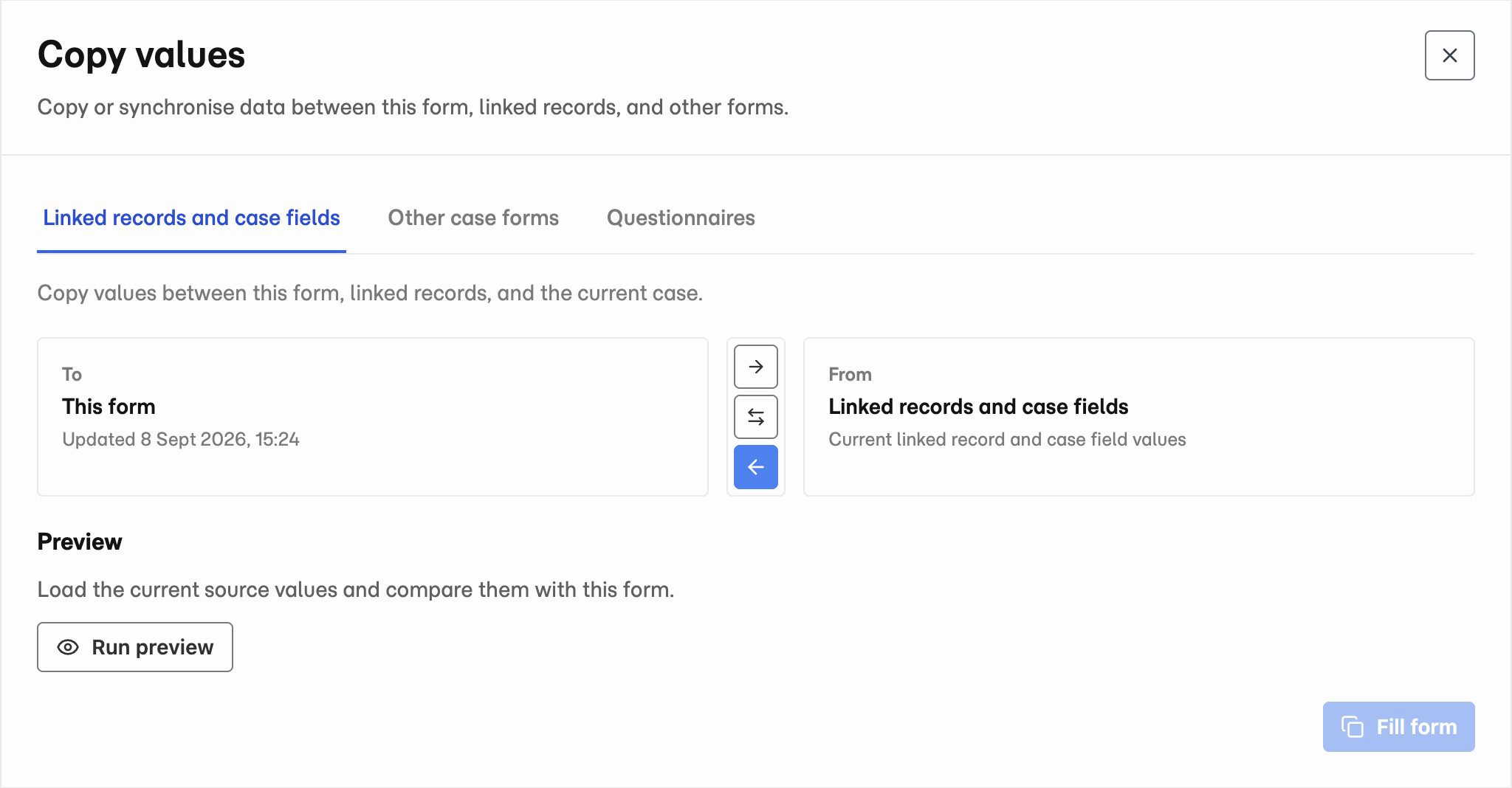
- 1 Choose the copy source.
- 2 Check From, To, and the arrow direction.
- 3 Select Run preview before copying values.
Not every form question has a reusable field. Only compatible fields with the required record links can transfer values.
Save reviewed answers for reuse
Review questionnaire submissions before applying them. Check both the destination record and any existing value.
For a case form, use Copy values and check the direction before transferring answers to linked records. Application-specific answers do not all become contact or organisation fields.
Saved records and form answers are separate. After changing a record, review and transfer its values to an existing form when needed.
Configure fields and sections
Open Practice Settings → Record details to configure how records show structured information.
- Custom fields and sections: create practice-owned sections and place fields in them. A custom field can appear in more than one section without duplicating its value.
- Section availability: choose which system sections are available for each record type. Case availability is configured per case type.
- Section layout: choose the tab and order for each section.
Save layout changes before switching record types. A tab without sections is removed when you save.
Changing a field definition affects the sections that use it. Archiving a custom field hides it from those sections while preserving existing record values.
Check missing or unexpected values
- Check that you opened the correct person’s or organisation’s record.
- Check the form’s Linked records assignments.
- Check whether the question has a compatible reusable field.
- Check the copy preview for conflicts or skipped values.
- If a section is missing, ask a workspace administrator to check its availability and layout.