Questionnaires
Use a predefined questionnaire template to collect client answers through the portal. Choose a template that covers the information you need.
The client answers questions in the portal. Your team reviews the submitted answers before applying them to forms or saved record details.
Choose a predefined questionnaire
Open Templates from the left sidebar, then select Questionnaires. Select Built in to find predefined templates. Search by name and select Preview to check the questions.
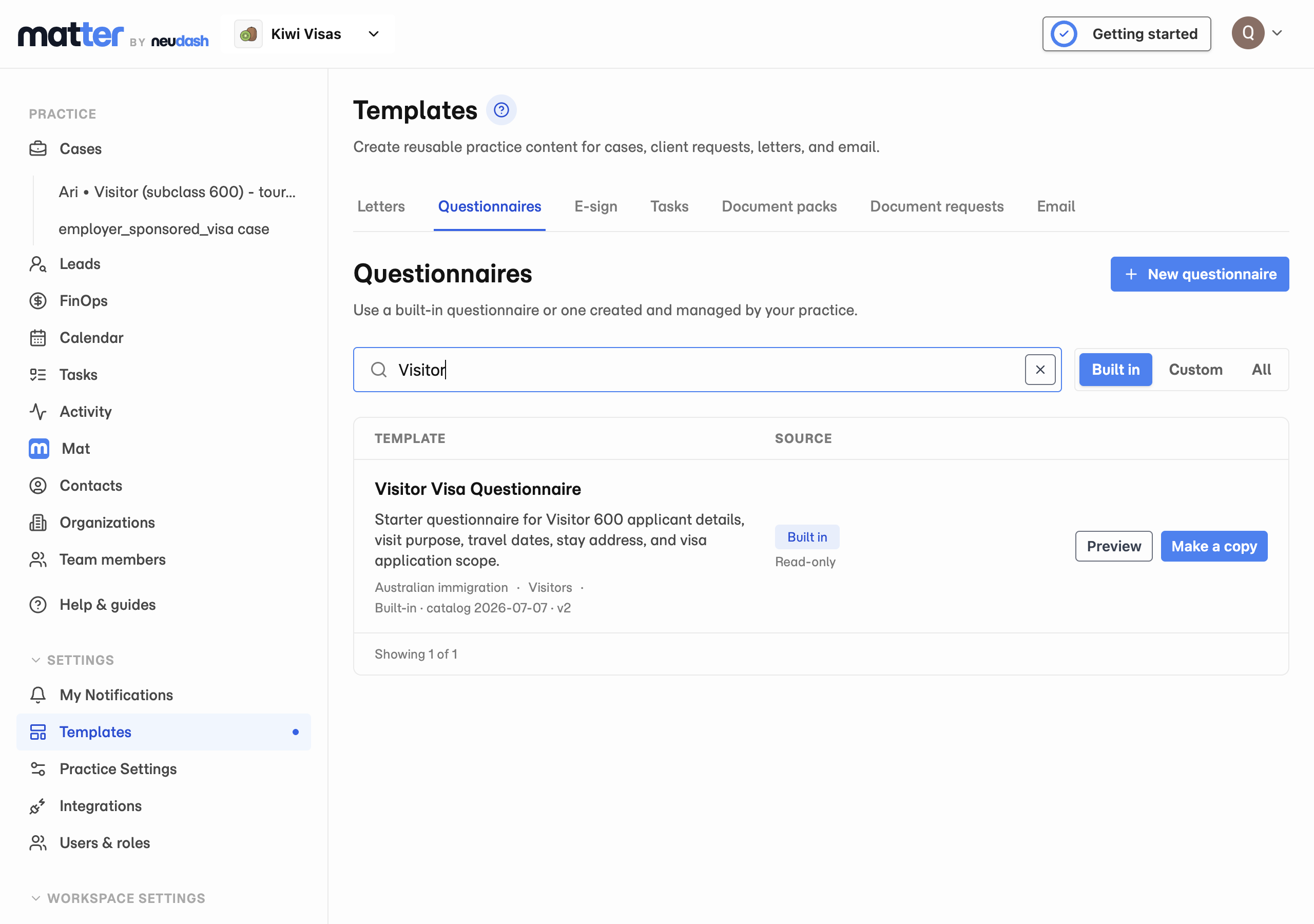
- 1 Open Templates, then Questionnaires.
- 2 Select Built in and search for a template.
- 3 Select Preview to check its questions.
A template may not cover every question on an official form. Check the case form for missing answers after reviewing the client’s response.
Create a questionnaire from a template
- Open the case and select Client Portal.
- Select the document group, then select Actions → Create questionnaire beside the group name.
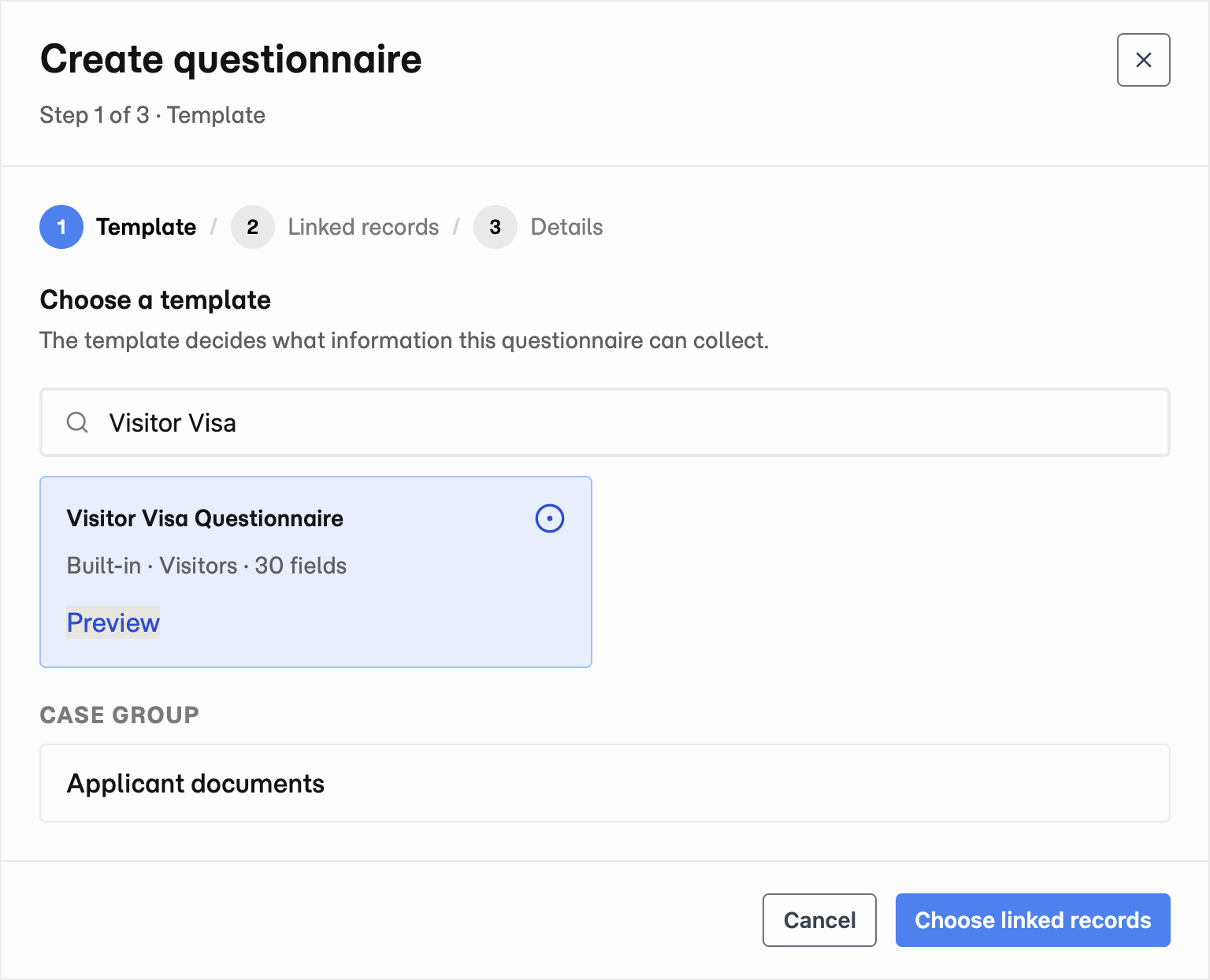
- Choose a predefined template and check the Case group.
- Select Choose linked records and link the people or organisations the answers describe.
- Select Review details and check the title, category, and instructions.
- Select Create questionnaire.
- Review the questions and client access before notifying the client.
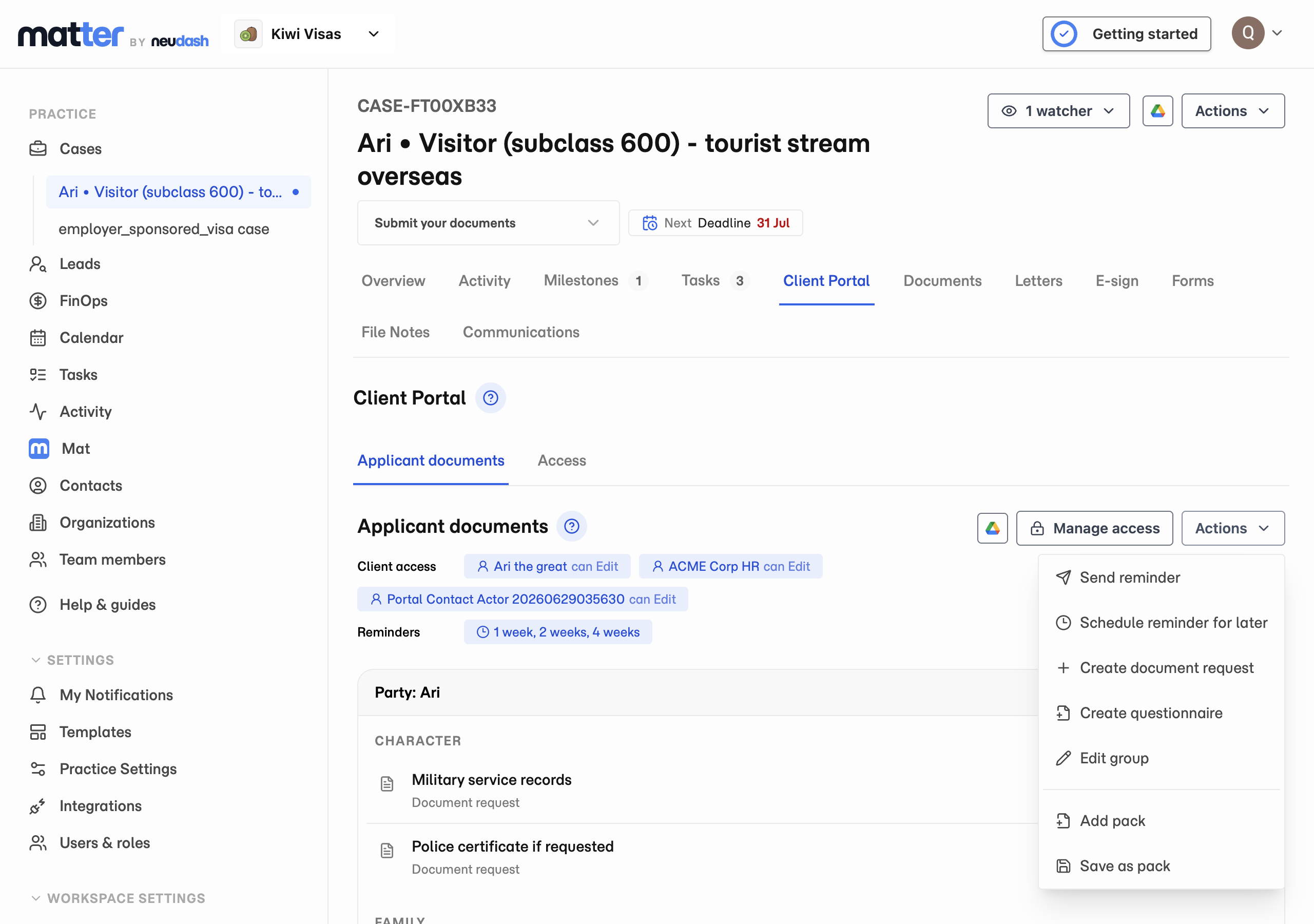
- 1 Open Client Portal and select the document group.
- 2 Open the group’s Actions menu.
- 3 Select Create questionnaire.
Search for the template you need, then select its card. Check the destination under Case group before continuing.
For example, an applicant can answer personal-history questions while an employer supplies business details. Check each request’s content and access separately.
Client answers and submissions
Clients save their answers in the portal and submit them for review. A saved draft is not a submitted response.
Submitting a questionnaire does not update the case form, linked people, or organisations automatically. It also does not send answers to ImmiAccount.
Staff can use the request’s Form view to enter answers on the client’s behalf. Check which response you are reviewing before applying values.
Review and apply answers
- Open the questionnaire request and review the submitted answers.
- If answers need correction, request changes with a clear explanation.
- Open Apply values to compare submitted answers with their destinations.
- Check the destination record and existing value for each selected answer.
- Apply the selected values.
- Check the result and the request status.
Selecting a conflicting value can replace an existing answer. Leave an answer unselected if you do not want to copy it.
The available destinations depend on the questionnaire and its linked records. Apply only the values shown for the intended destination.
If values cannot be applied, check the record links and the reported reason. Do not assume a completed review means all values were copied.
To transfer reviewed answers into an official form, open the case form’s Copy values action. Choose Questionnaires or Linked records and case fields, as available. Preview compatible values, select what to copy, and check the result. Enter remaining answers directly in the case form.
Change questions or reuse a template
Use Edit questionnaire from Documents or the portal request to change the questions. Both edit the same questionnaire. These changes do not edit the original template.
For future requests, update the questionnaire template. Existing requests keep their own questionnaire copy. See Templates.
Answers and supporting files
Use a questionnaire to ask for a passport number or travel dates. Use a document request to collect the passport file or travel evidence.
An uploaded file and an accepted answer are separate items. Review both when the case needs both.