ImmiAccount filling
For supported online forms, Matter uses the Form Assistant Chrome extension to compare and transfer answers between a case form and an ImmiAccount application.
Start from the case form’s Online form tab. Available actions depend on that form’s supported operations and the current connection state.
Open Cases, open the case, then select Forms. Open the form by name and select Online form below its title.
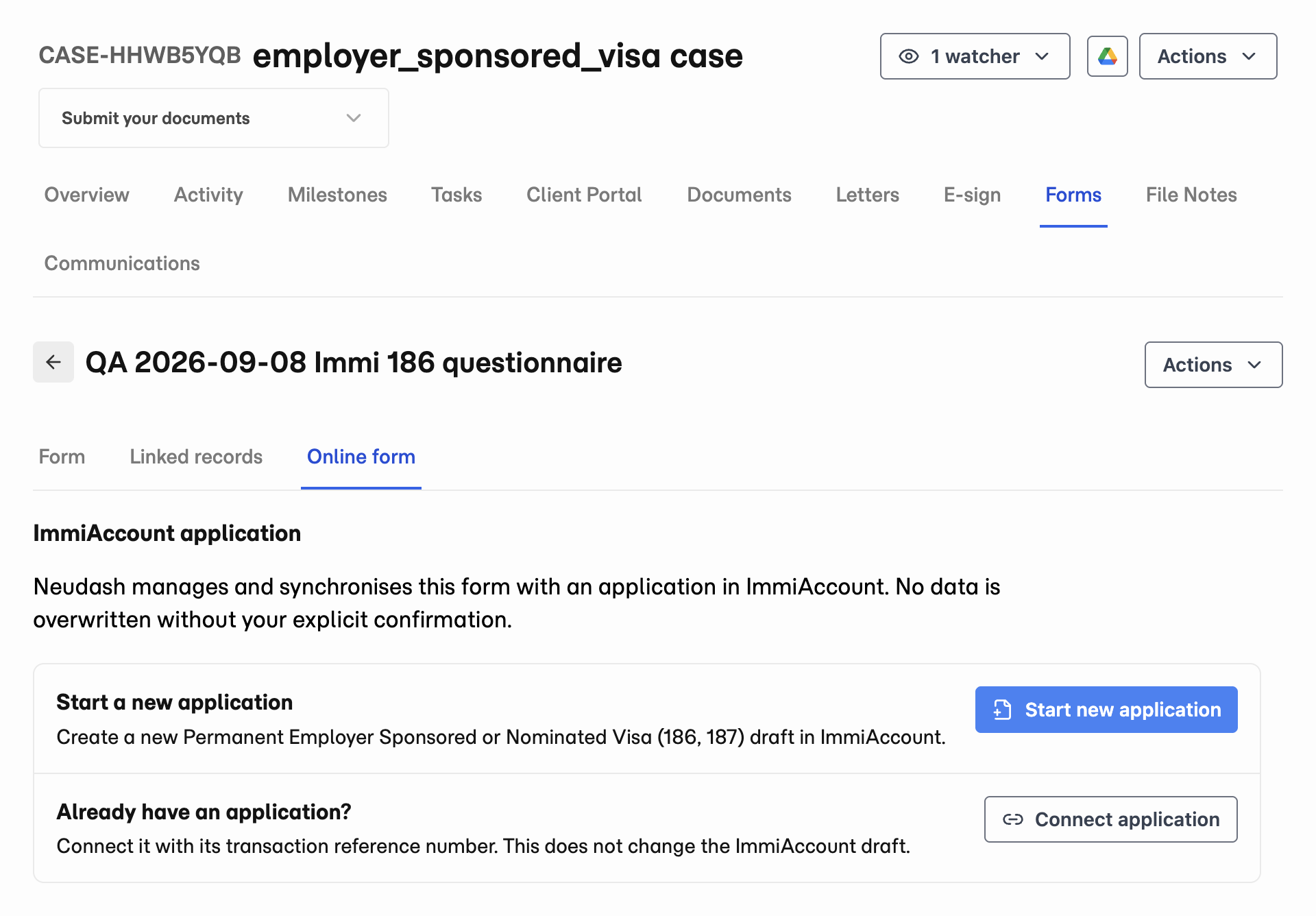
- 1 Open Online form.
- 2 Choose Start new application or Connect application.
Before connecting
- Use Chrome with the Neudash Form Assistant extension installed and enabled.
- Sign in to Matter and open the correct workspace, case, and case form.
- Review and save the form answers.
- Sign in to ImmiAccount yourself when prompted.
The connection is to a particular application. Check its reference before transferring any answers.
Connect the browser during setup
- Open Online form on the case form.
- Start or connect an application using the actions described below.
- Follow Matter’s browser setup prompts.
- If prompted, open ImmiAccount in Chrome and sign in.
- If Matter asks you to choose a browser tab, select the correct ImmiAccount tab.
- Return to the case form and continue setup.
Keep the case form open while the browser operation runs. Check the application reference before continuing work on another form.
Connect an application
Use Connect application for an existing application. Enter its transaction reference number and check the application that Matter identifies.
Where supported, Start new application starts an application from the selected case form. Review required setup information before continuing.
Connecting the browser tab and linking the application are separate steps. A connected tab alone does not identify the correct application.
Compare and transfer answers
- Open Review and transfer.
- Run the initial comparison or select Compare both sides.
- Review differences between Matter and ImmiAccount.
- Choose which values to keep and which changes to apply.
- Check the destination before applying changes.
- Review the reported result and the application itself.
After an initial comparison, Update Immi can transfer later Matter changes for supported forms. It checks the current ImmiAccount application before writing. Unexpected ImmiAccount changes require comparison and review.
Values copied into the case form do not automatically update contact or organisation details. Use the form’s separate copy action for reusable records.
Incomplete comparisons and connection problems
If a comparison is incomplete, check the reported pages or fields. Unread or unsupported answers have not been verified.
If the session expires, sign in again and reconnect the provider tab. Return to the selected Matter form if the extension needs its page open. Repeat the comparison before relying on previous results.
Check any manual actions reported by Matter. Do not treat a successful transfer as proof that the whole application is ready.
Review, supporting files, and lodgement
Review the application in ImmiAccount after filling. Check unanswered questions and supporting-document requirements.
Collecting supporting files in Matter does not mean they have been attached to ImmiAccount. Check attachments separately.
The form-filling workflow does not submit, lodge, certify, or pay for the application. Your team controls those final actions.