Official forms
A case form holds the answers for one form on a case. Start from a supported official form, reuse saved details, and collect missing answers through questionnaires.
Matter brings saved details, client answers, supporting documents, and form preparation into the case workflow. This reduces repeated questions and manual copying while your team controls review.
Find forms on a case
Open Cases from the left sidebar, then open the case. Select Forms in the case navigation, below the case title.
Select Add case form to choose an official form. To continue an existing form, select its name in the list.
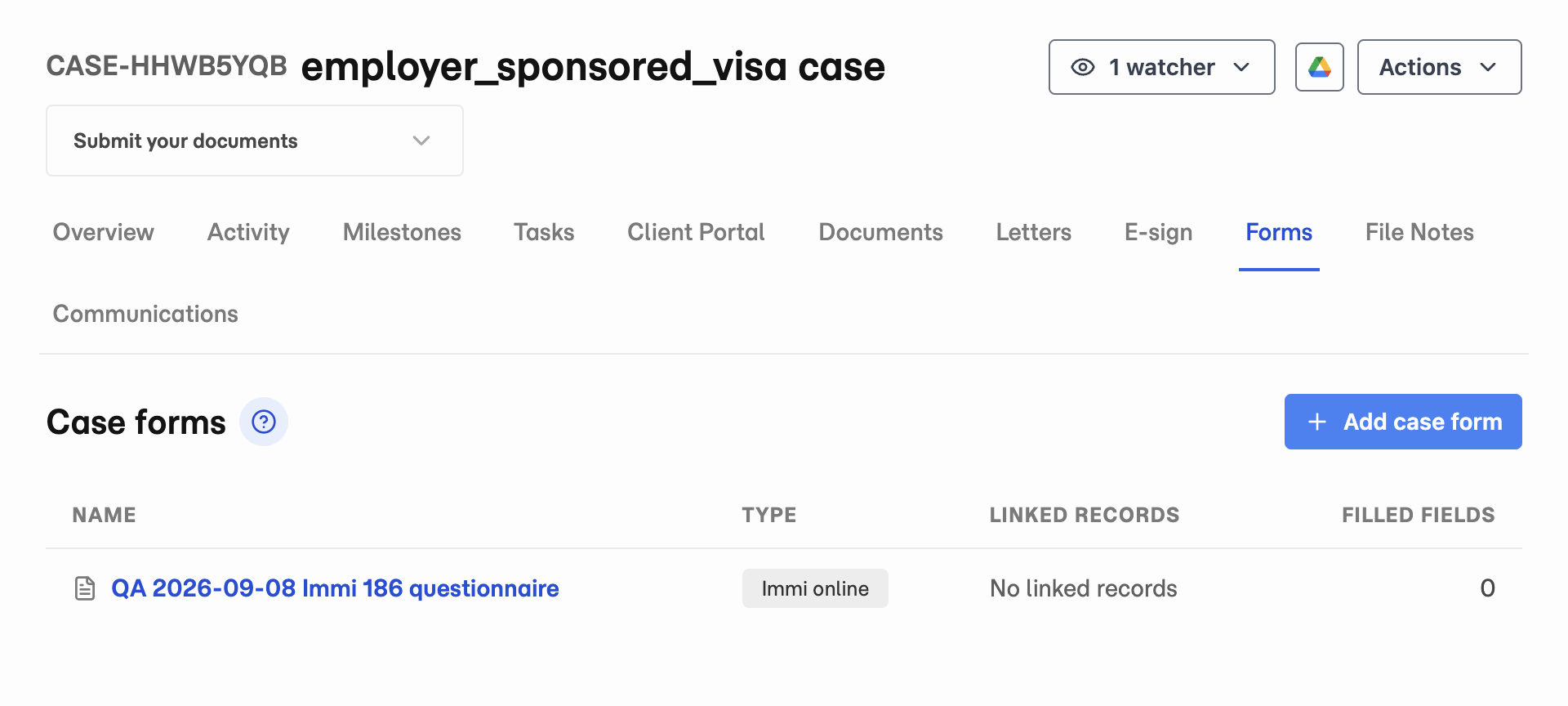
- 1 Open Forms on the case.
- 2 Select Add case form.
Forms, questionnaires, and saved details
| Item | What it holds | How you use it |
|---|---|---|
| Official form | The questions and structure of a supported authority form. | Choose it when creating a case form. |
| Case form | Answers for this particular form and case. | Review answers before PDF export or online filling. |
| Questionnaire | Questions sent to a client through the portal. | Collect answers, then review and apply them. |
| Saved details | Reusable details saved against a person, organisation, or case. | Copy compatible details into forms and reuse reviewed answers. |
| Supporting files | Documents such as passports or evidence of employment. | Collect and review them through document requests. |
A questionnaire is not an official application. Submitting a questionnaire does not submit an application or automatically update saved records.
Create a case form
- Open the case and go to Forms.
- Select Add case form.
- Choose the supported form that matches your work.
- Check the title and linked records before creating it.
- Open the created form and review its questions.
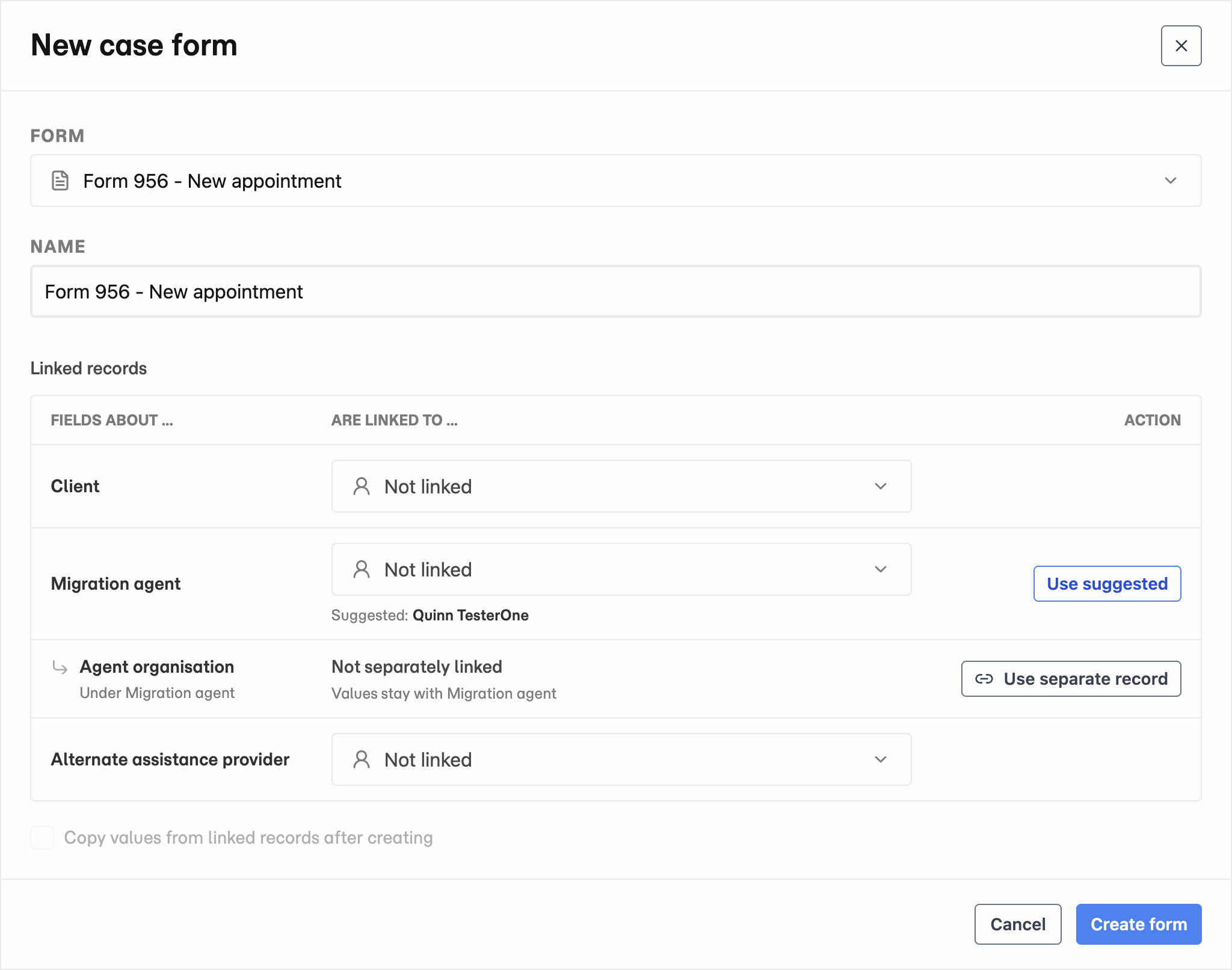
Open the form to see its supported PDF export and online-fill actions. A generated PDF or application draft is prepared for your review. Check the result before lodgement; Matter does not lodge on your behalf.
Link the right records
Open Linked records on the case form. Link each role, such as applicant or sponsor, to the correct person or organisation.
Select Save linked records after changing the links.
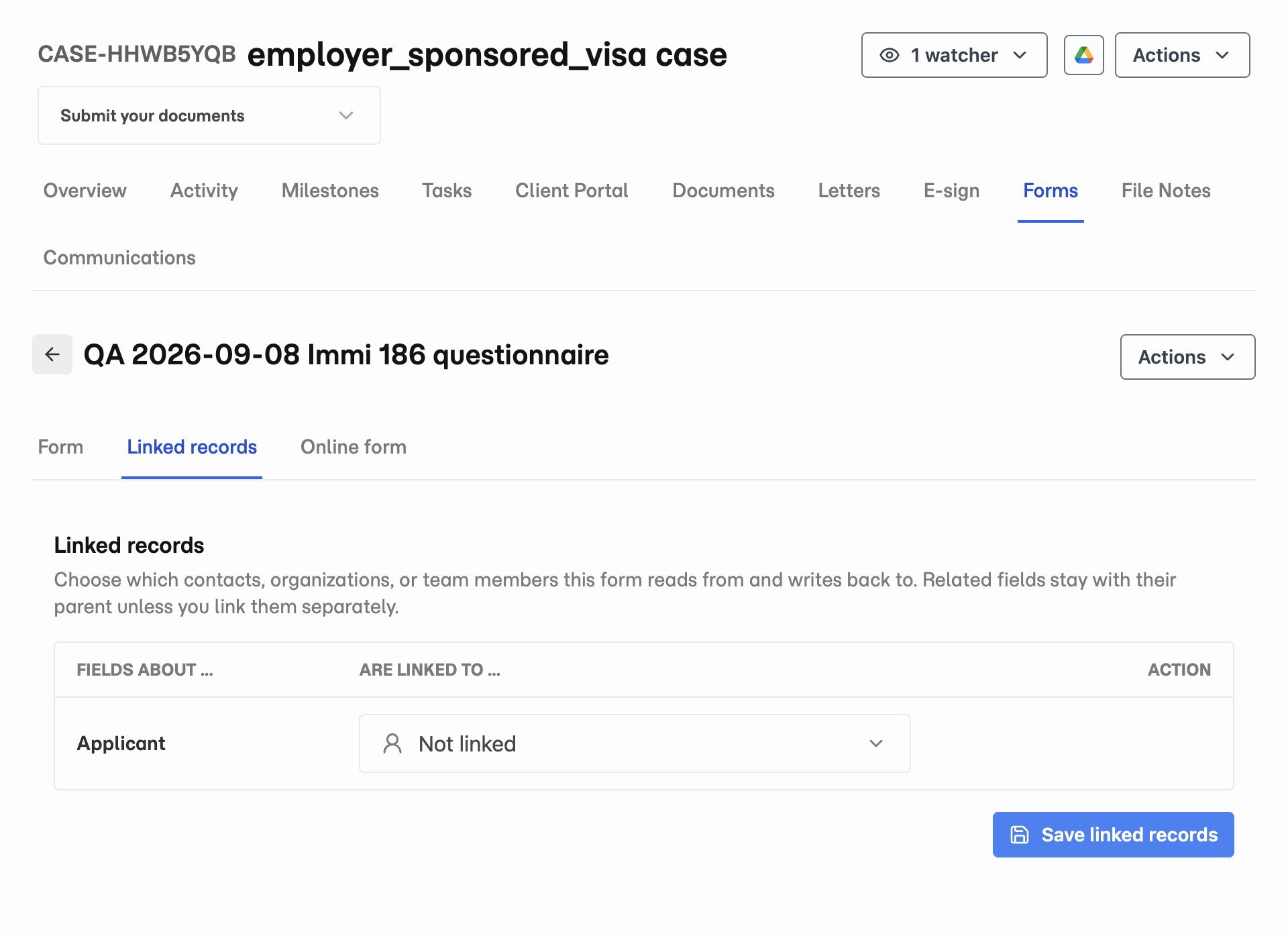
- 1 Open Linked records.
- 2 Choose the applicant, then select Save linked records.
These links determine whose saved details can be copied. An unlinked role cannot supply reusable details or receive copied answers. Linking a record does not grant client portal access.
Copy saved details
- Open the Form tab, then select Actions → Copy values beside the form title.
- Choose Linked records and case fields to work with reusable details.
- Check the direction of the operation.
- Preview the values and check differences against existing answers.
- Select the values to use and apply the operation.
- Return to Form and check the result.
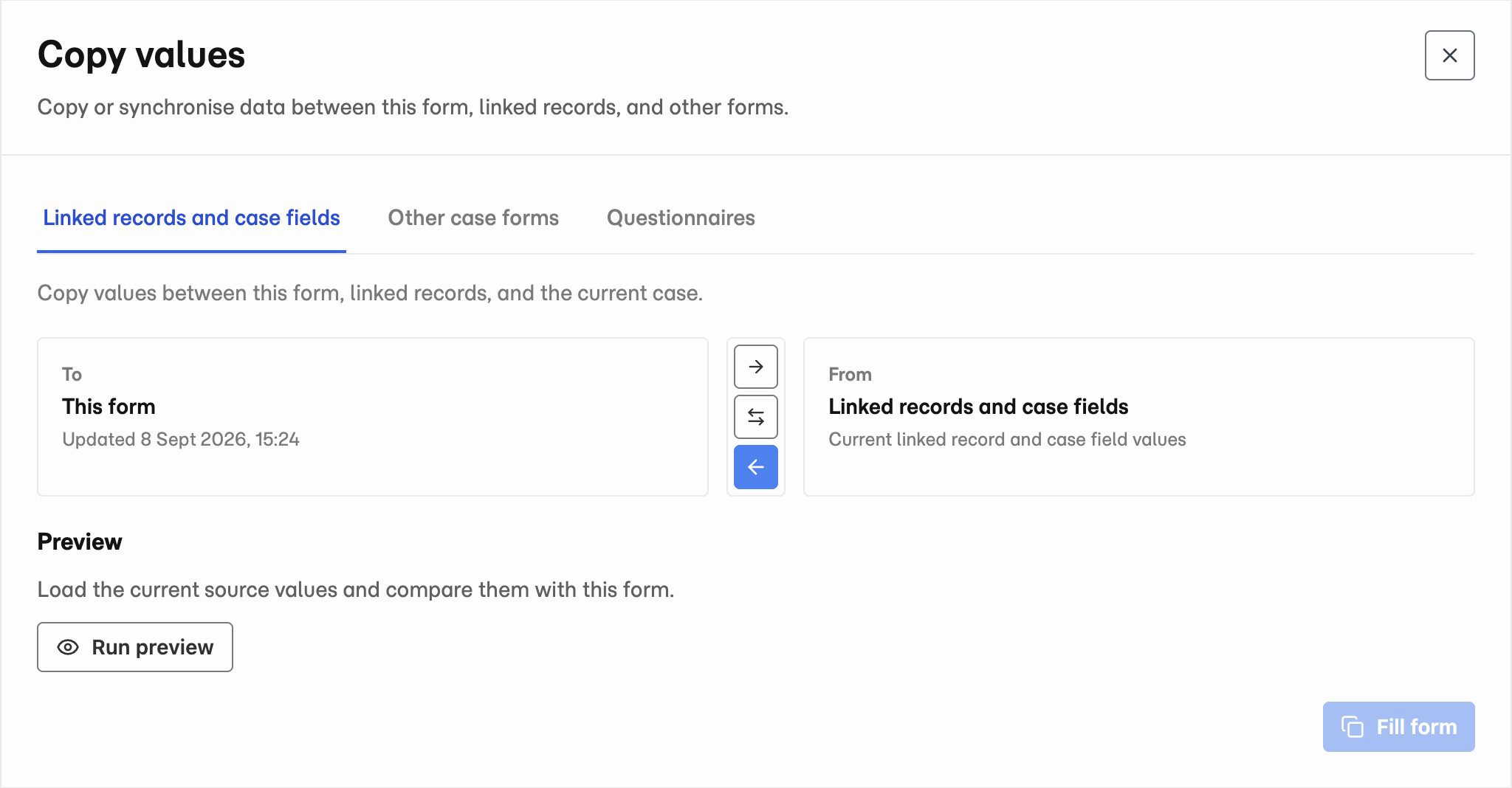
- 1 Choose the copy source.
- 2 Check From, To, and the arrow direction.
- 3 Select Run preview before copying values.
Other case forms and Questionnaires provide other copy sources where available. Only compatible values can be copied. Check missing links, skipped values, and conflicts before continuing.
Form answers and saved record details are separate. Editing one does not mean every other form has changed. Use the copy or synchronisation action when you want to transfer values.
Collect missing answers
Open Client Portal on the case and select the document group. Select Actions → Create questionnaire beside the group name. Choose a predefined template that covers the missing information.
After the client submits, review the answers. Use Copy values on the case form to preview and copy compatible values. Enter remaining answers directly in the form. See Questionnaires.
Prepare the official output
- For a supported PDF form, use the PDF tab. See Official PDFs.
- For a supported online form, use the Online form tab. See ImmiAccount filling.
Review the generated PDF or online application before using it. Form preparation does not complete lodgement.