Schedule document reminders
Set up automatic reminder emails for a document group. Matter stops sending reminder emails when every request in the group is Complete or Not required.

Written by Michael Ruflin
Matter product guide · Published
Before you start
- The document group contains at least one request marked Waiting on client or Changes requested. Check document request statuses
- The client can open the document group in Client Portal. Give a client access
- The client's email address is saved in Matter. Add or change a client email address
- Your practice can send email from Matter. Connect a mailbox
1. Go to the document group
Open the case and go to the document group in Client Portal.
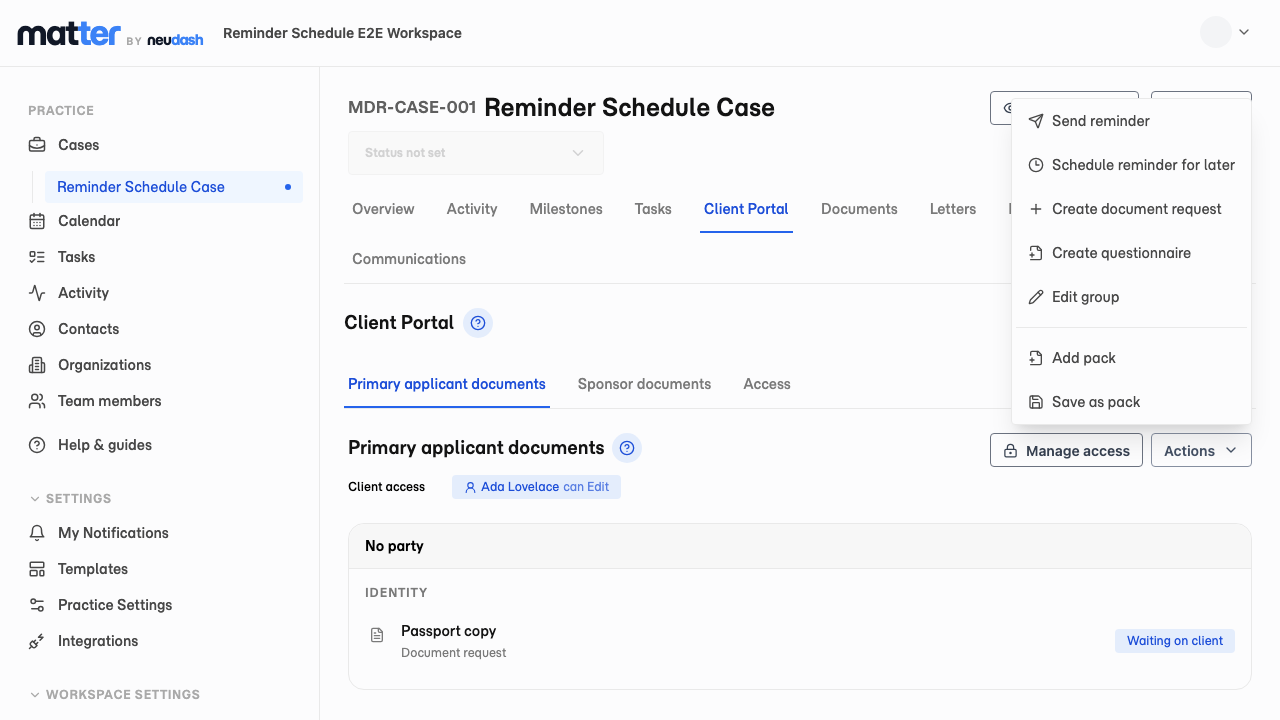
- 1 Select Actions
- 2 Select Schedule reminder for later
2. Set the reminder times
Choose when Matter will send each reminder.
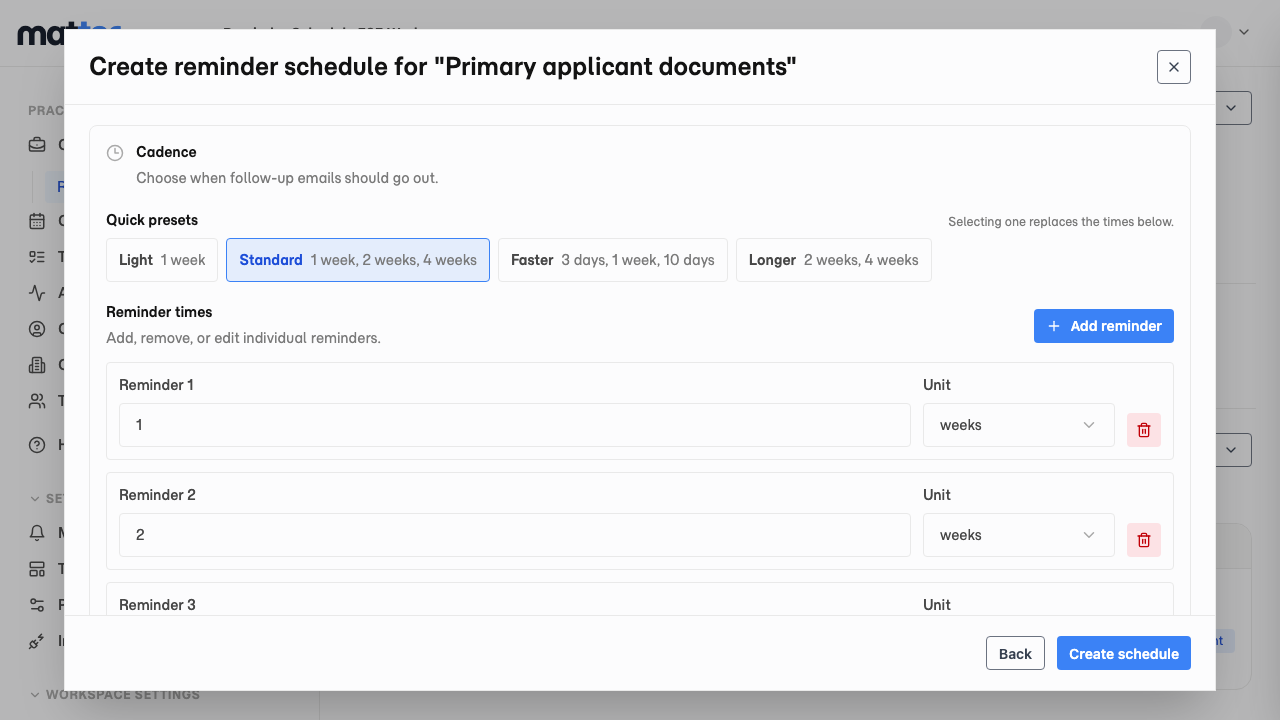
- 1 Select Standard
- 2 Check the times under Reminder times
3. Check and create the schedule
Check the sender, recipient, and message before you create the schedule.
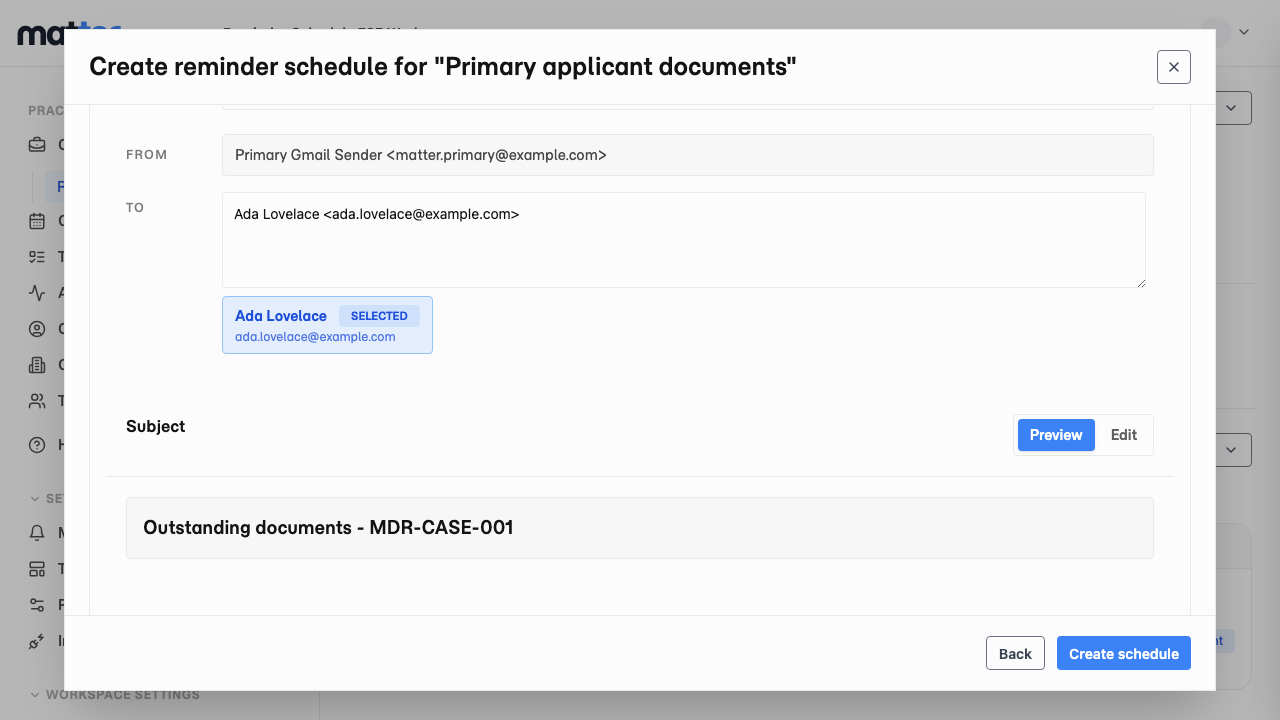
- 1 Check the email address under To
- 2 Check the email address under From
- 3 Check the message in Preview
- 4 Select Create schedule
4. Confirm the schedule
Confirm that the schedule is active and review the reminder dates.
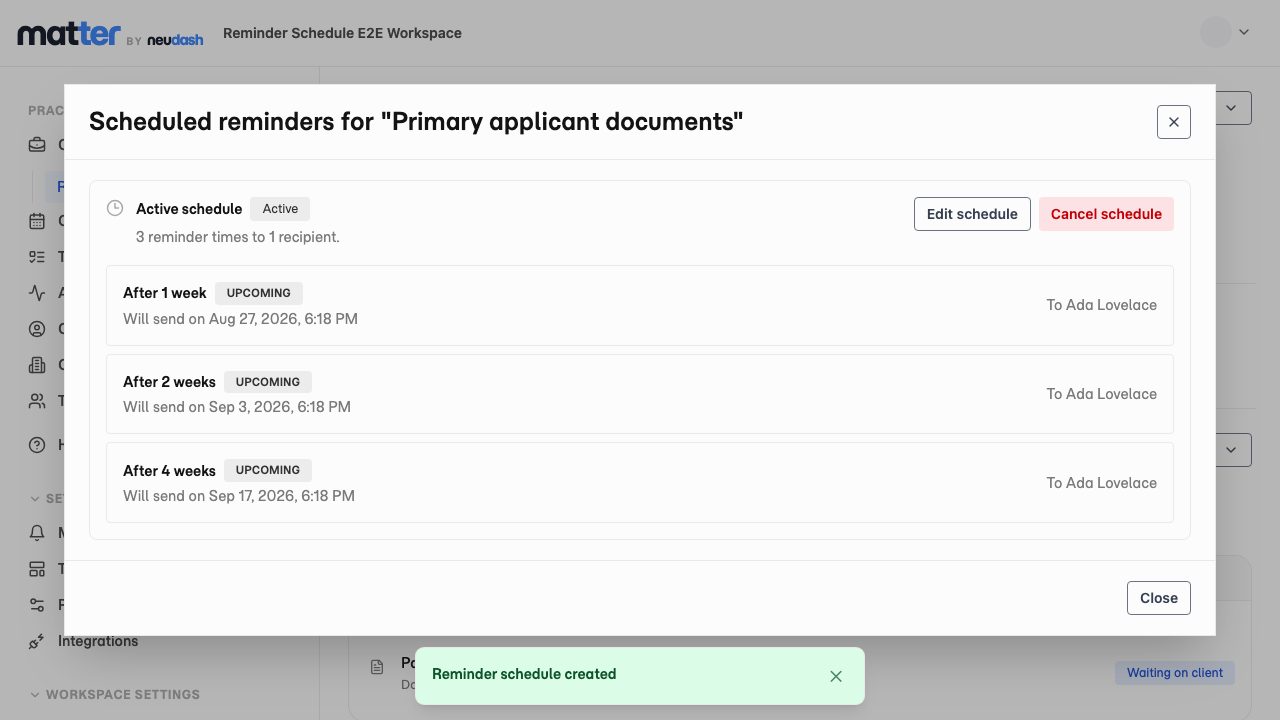
- 1 Check for Active schedule
- 2 Check the reminder dates
- 3 To change the reminders, select Edit schedule
- 4 To stop future reminders, select Cancel schedule
5. Find an active schedule
Return to the document group to see its active reminder times.
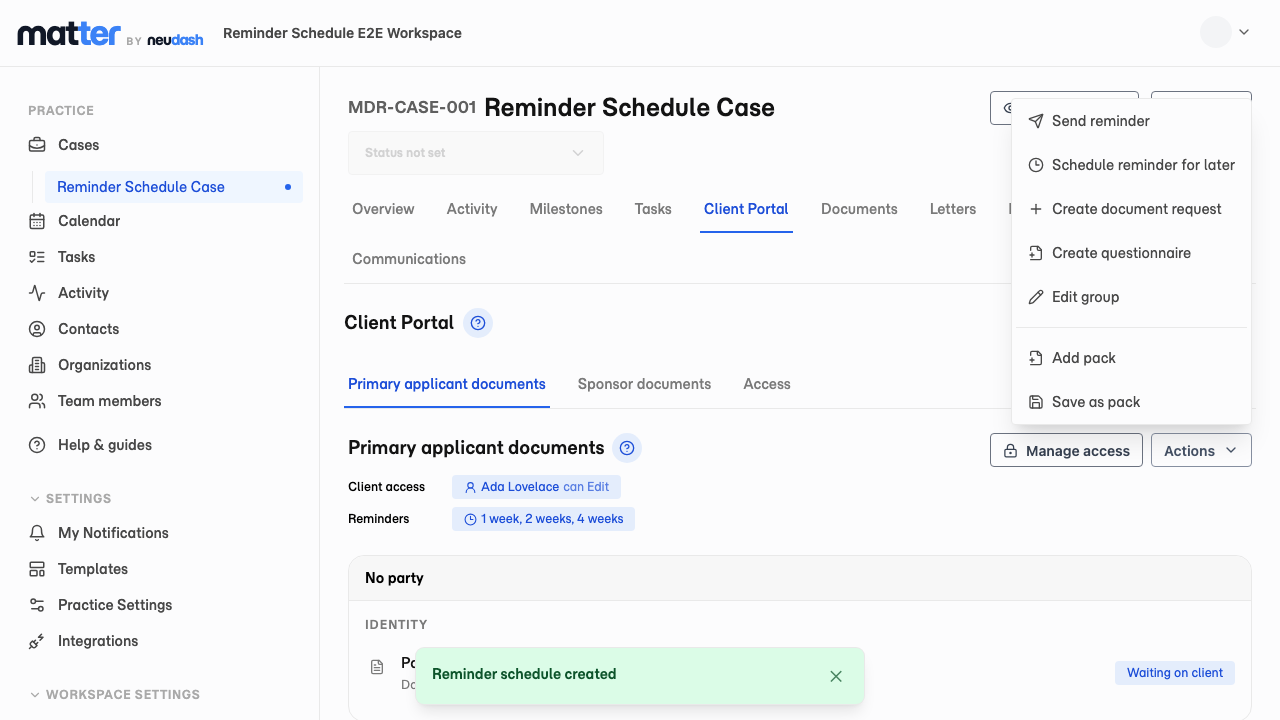
- 1 Check the Reminders row
- 2 Select Schedule reminder for later to open the active schedule
6. Edit the schedule
Open the active schedule and change its reminder times or email.
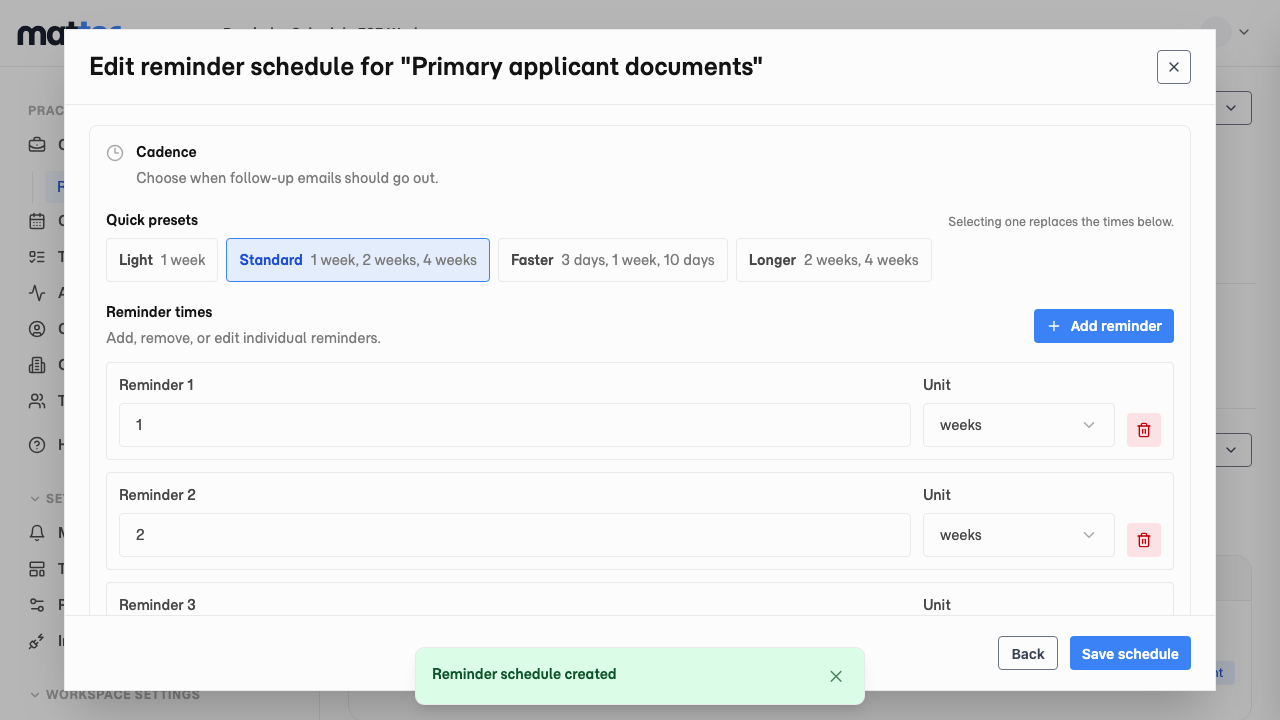
- 1 Change the times under Reminder times
- 2 Select Save schedule
What happens next
Matter sends each reminder email on the date shown in the schedule. Matter cancels reminders that have not been sent when every request is Complete or Not required.