Upload and submit your documents
Use the portal your practice shared with you to send the documents requested for your case.
Before you start
- Open the portal link from your practice.
- Sign in with the email address your practice gave access to.
- Have the requested files ready. Read the instructions for each request before choosing a file.
If you cannot see your case or portal, contact your practice. They need to check your access.
1. Open the request
Choose your case if you have more than one, then open Requests. Select the document request you want to answer.
Check who the document is for and what the practice needs. Include every page requested.
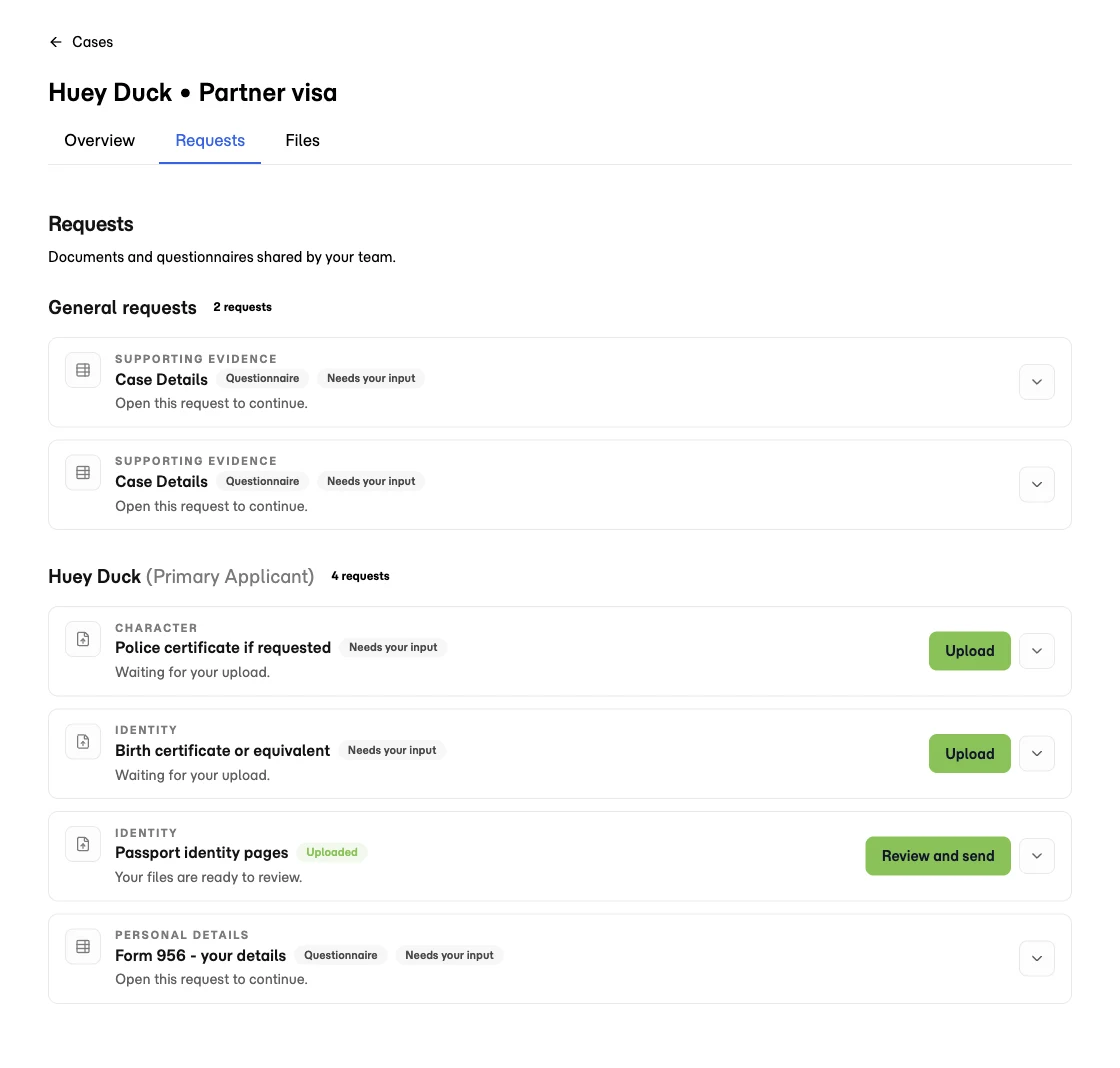
Select the screenshot to enlarge it.
2. Upload your files
Upload the files from the request so they stay attached to the correct item. Check the filenames and any preview before continuing.
Follow the file type and size guidance shown in the portal. If an upload fails, use the message shown to correct the file and try again.
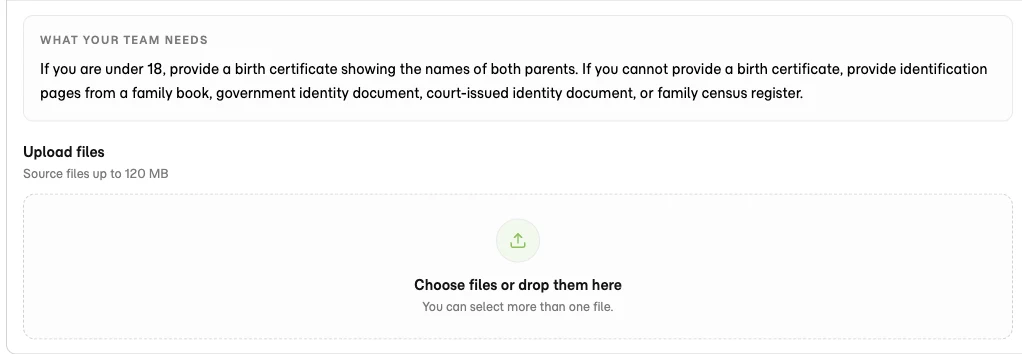
Select the screenshot to enlarge it.
3. Submit for review
Select Review and send to check your uploaded files. When you have added all the files for that request, select I am done.
Uploading a file and submitting a request can be separate steps. Check the status before leaving the page.
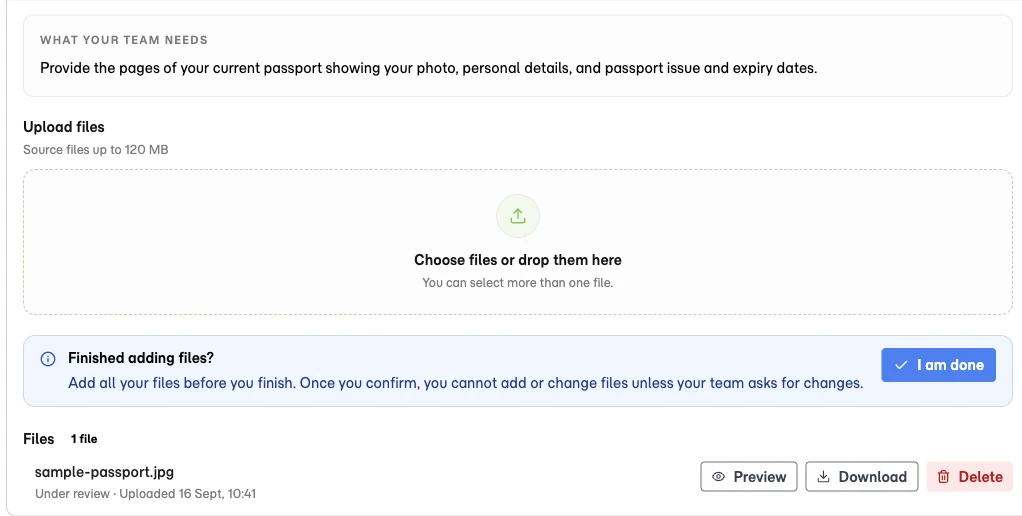
Select the screenshot to enlarge it.
4. Check what happens next
With your team means your practice needs to review the files. A request becomes Complete when the practice accepts it.
If the practice asks for changes, read their note, update the files, and submit again when the request allows it.
If something goes wrong
I uploaded the wrong file
If the request is still editable, remove the file and upload the correct one. If you have already submitted it, contact your practice.
My upload is there, but the request is not complete
Check for a submit action. If the request is pending review, your practice needs to review it before it can be marked complete.
I cannot see a request
Contact your practice and tell them which case and document you expected to see. They can check the request and your portal access.
Need help with your case?
Contact your practice for questions about which documents to provide or whether they are acceptable.