Connect a mailbox for outgoing email
Connect a practice mailbox to Matter. A copy of each sent email appears in the mailbox's Sent folder.

Written by Michael Ruflin
Matter product guide · Published
Before you start
- You can manage practice integrations.
- You can sign in to the Gmail or Microsoft account that you want to connect.
1. Open the email integration
Start a connection for the mailbox your practice will use to send email.
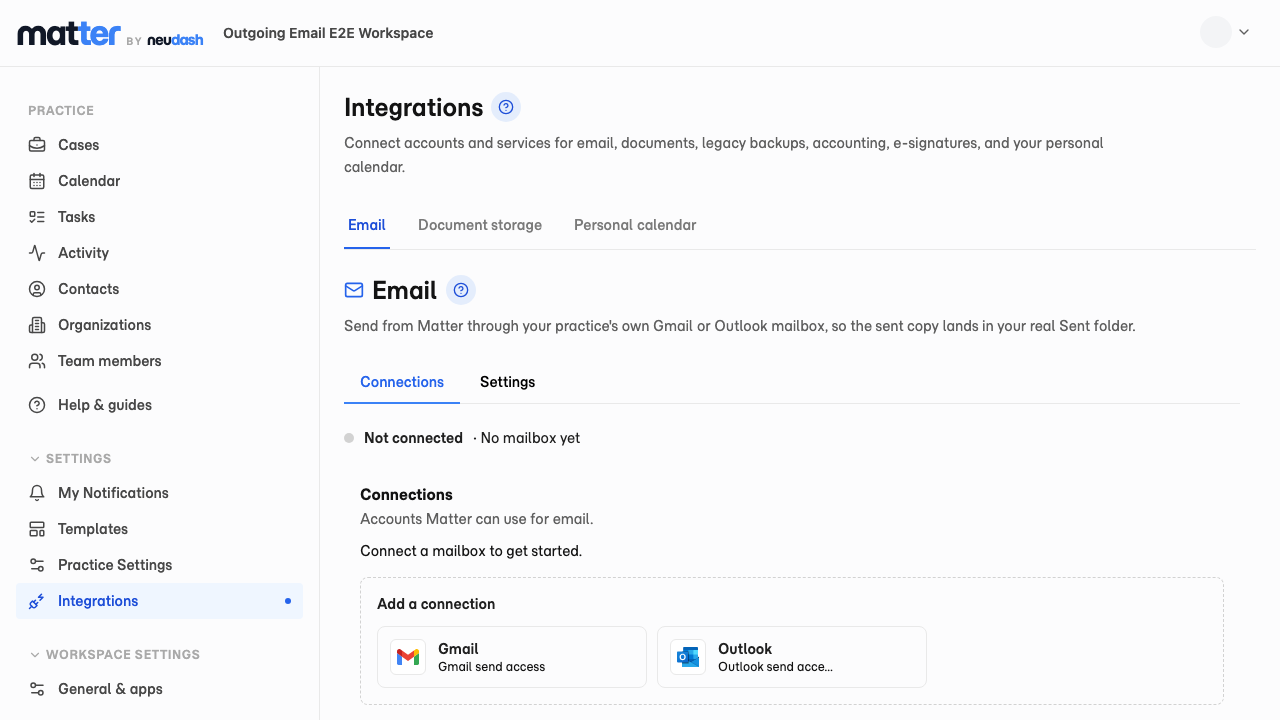
- 1 Select Integrations
- 2 Select Email
- 3 Select Gmail or Outlook
2. Start the secure sign-in
This example uses Google. Microsoft follows the same process.
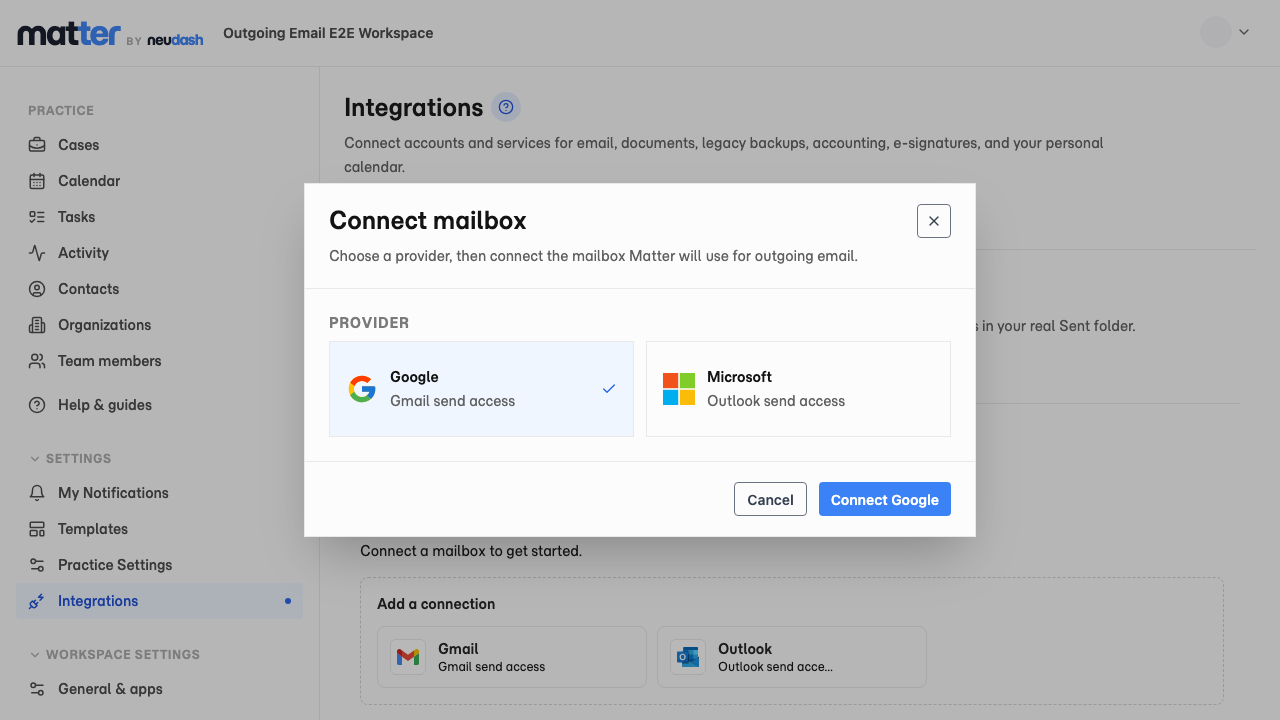
- 1 Check that Google is selected
- 2 Select Connect Google to open the sign-in window
3. Check the connection
Complete the sign-in steps, then confirm that Matter can use the mailbox.
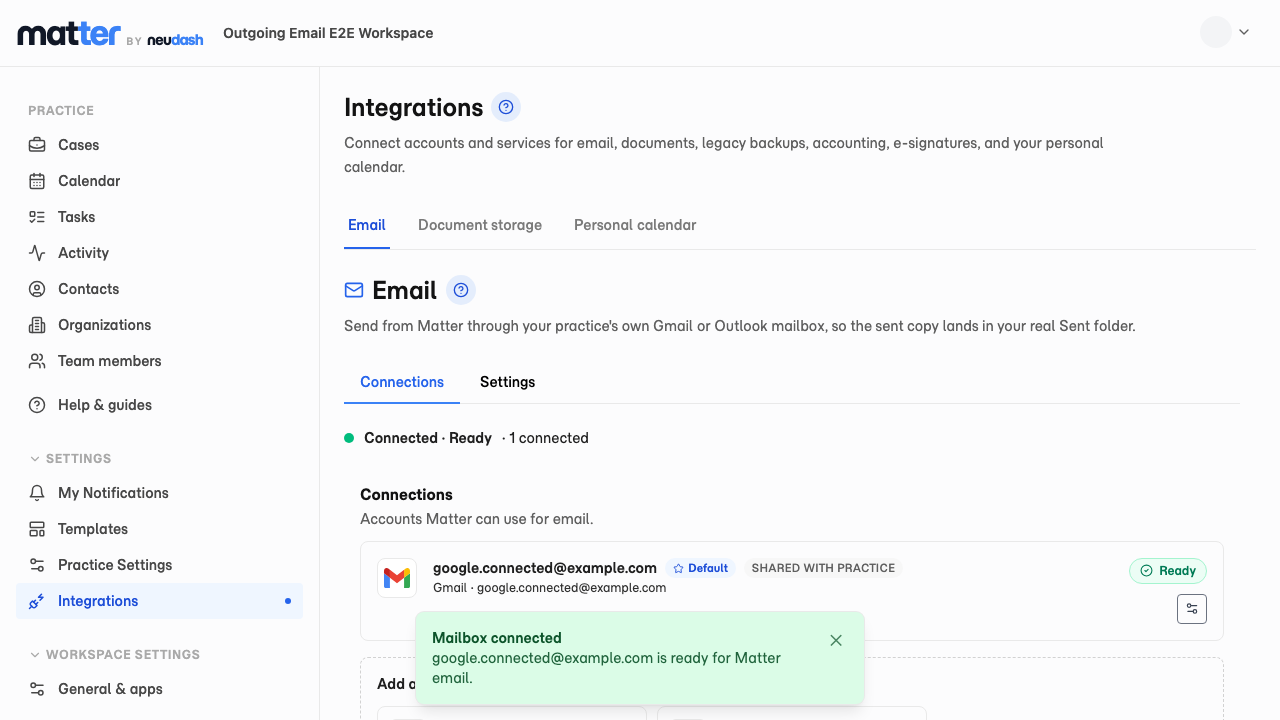
- 1 Check for Connected · Ready
- 2 Check that the correct mailbox is marked Ready